Below is a set of frequently used markdown commands for Jupyter Book 2 made with MyST. A good practice is to download the source file by clicking the download icon at the top right of this page and inspect the code.
Book structure
We can distinguish between two structures: that of the book’s content (a collection of different documents), and the (internal) structure of the chapters which consists of content structured in sections and subsections.
Table of Contents
In the myst.yml file, you can specify the structure of the book as shown in Figure 1. Here you can indicate which files belong to the book and in what order. You can also create dropdown menus. When not specifying a ToC, all files are automatically included in alphabetical order.
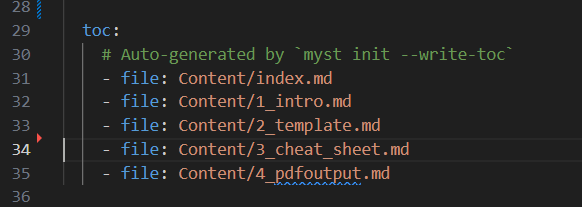
Figure 1:The Table of Contents (ToC) for this book.
If you create a new file, you need to add it to the myst.yml file to include it in the book.
Chapters, sections and subsections
To distinguish between chapter, section, and subsection (and further), use a number of # symbols, as shown below.
# H1 chapter
## H1.1 section
### H1.1.3 subsection Basic Formatting
Markdown is a markup language where text formatting is done with small pieces of code (just like HTML). This is a table with some frequently used formatting options.
| Element | Syntax | Example |
|---|---|---|
| Bold | **bold text** | Bold |
| Italic | *italics* | Italics |
| Emphasis | ***emphasis*** | emphasis |
| Inline Formula | $F = m \cdot a$ | |
| Footnote | - A footnote reference[^myref] [^myref]: This is an auto-numbered footnote definition. | - A footnote reference[1] |
You can create a new line by either a hard enter and a blank line, a \ at the end of the line and enter, or two spaces at the end of the line.
New Line
Generally, in markdown, a single hard enter does not create a new line. You need to use one of the options below.
A new line with double space.
A new line with a \.
A new line with a hard enter and blank line.
No new line with just a hard enter and text on the next line. Like this
A new line with double space.
A new line with a `\`.\
A new line with a hard enter and blank line.

No new line with just a hard enter and text on the next line.
Like this
Equations & Symbols
For STEM subjects, mathematical equations and symbols () are essential. You can include equations in JB’s. What is possible in LaTeX is also possible in JB, for example:
Where labeled equations, such as (1), can be referenced.
$$ Equation $$ (<label>)
But you can also include inline equations like this: . Use a single dollar sign before and after: $ Equation $
| Name | Script | Symbols |
|---|---|---|
| root | \sqrt{4} | |
| power | ^{2x} | |
| fraction | \frac{2}{3} | |
| subscript | _{avg} | |
| superscript | ^{N} | |
| multiply | \cdot |
Some examples:
| Name | Script | Output |
|---|---|---|
| Derivative | \frac{\Delta f}{\Delta t} | |
| Integral | \int_a^b dx | |
| sine | sin(x) |
More: https://
Lists & tables
Lists Option 1
item 1
item 2.
item 3.
1. item 1
1. item 2.
1. item 3.
Lists Option 2
item 1
item 2.
item 3.
1. item 1
2. item 2.
3. item 3.Tables
Tables are created with the separator |
|Header 1|Header 2|Header 3|
|---|---|---|
|text 1|text 2|text 3|
|text 4|text 5|text 6|
```
|Header 1|Header 2|Header 3|
|---|---|---|
|text 1|text 2|text 3|
|text 4|text 5|text 6|
```Or via ...
Table 1:Overview of sanctions for certain behavior
Behavior
|
|---|
Not (timely or with a valid reason) deregistered
|
```{list-table} Overview of sanctions for certain behavior
:header-rows: 1
:name: tl_sanctions
* - Behavior
    - Sanction for 1st time
    - Sanction for 2nd time
* - Not (timely or with a valid reason) deregistered
    - A penalty
    - exclusion
```
Method 2 has the advantage of allowing references to Table 1
Tabs
::::{tab-set}
:::{tab-item} Tab 1
Text in tab 1
:::

:::{tab-item} Tab 2
Text in tab 2
:::
::::
Will create this tab:
Text in tab 1
Text in tab 2
Checklists
Create a markdown cheat sheet
Publish online
Let others test
- [x] Create a markdown cheat sheet
- [x] Publish online
- [ ] Let others testAdmonitions
You can add special blocks that are highlighted in the text. See, for example, the warning below.
Created using:
```{warning}
Here is a warning
```
There are different variants such as:
tip
admonition
warning
note
objective
see also ...
Exercises
A special case is the exercises which can be labeled and can come with a solution that is linked to the exercise:
Solution to Exercise 1
6
Figures
A site/book naturally needs figures. There are roughly two ways to add a figure:
Quick figure, without formatting options
| Quick figure |  |
Better way with more control:
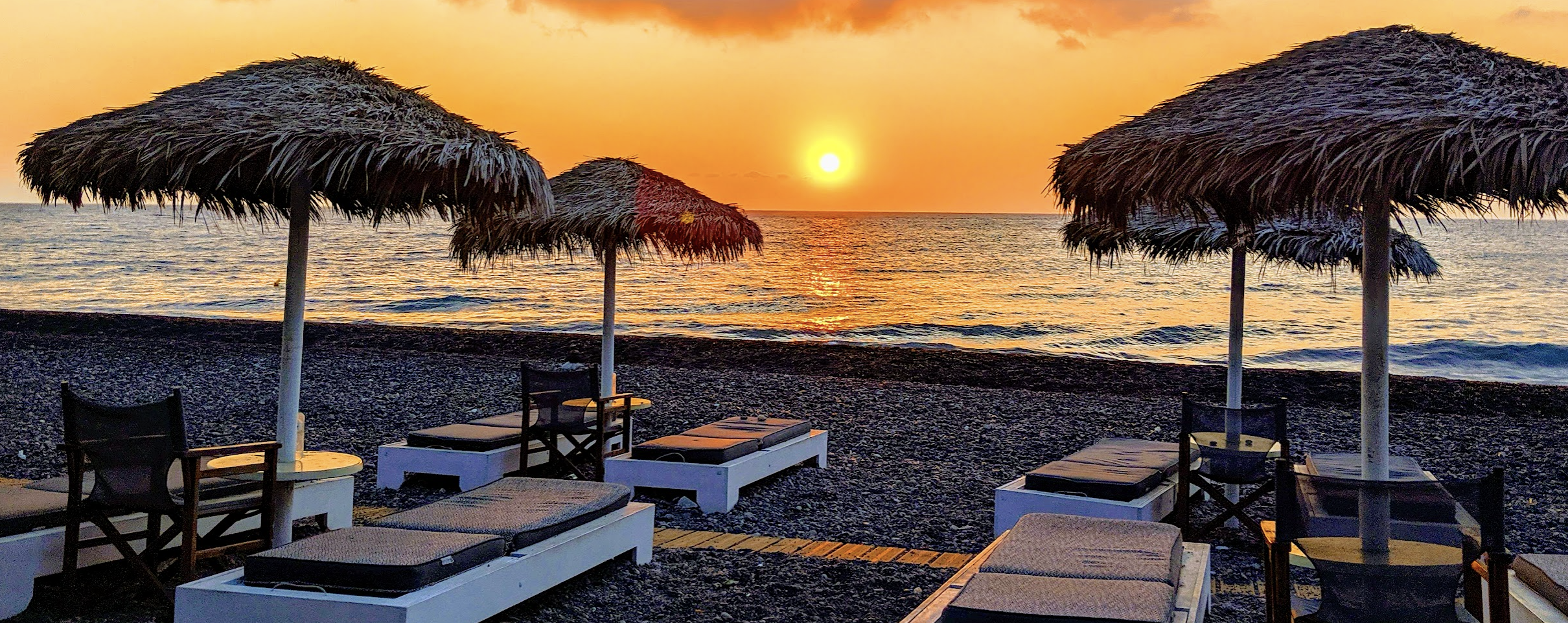
Figure 2:With a nice caption
```{figure} https://github.com/rowanc1/pics/blob/main/sunset.png
:label: fig1
:width: 70%
:align: center

With a nice caption
```
Here we used figures hosted online, but you can also add figures to a folder (e.g., called Figures), and then use a relative path.
YouTube
To embed YouTube videos on the site, you need the embed YT link. The code is then:
A super fun video from the project Show the Physics
```{iframe} https://www.youtube.com/embed/YDBr1Lof_mI?si=thWYK9MFi5QJv-tW
:width: 80%
:align: center

A super fun video from the project [Show the Physics](https://interactivetextbooks.tudelft.nl/showthephysics)
```References & Links
You can included links like this. With the markdown syntax: [text](link).
It also possible to include reference through the reference.bib file, or directly by including the DOI: Pols (2021) (syntax: [](https://doi.org/10.1088/1361-6552/abf208)) or Pols, 2021 (syntax: [@doi:10.1088/1361-6552/abf208]).
Below a few examples of links and references to labeled items.
* This is a [hyperlink](https://nos.nl)
* This is a reference to equation {eq}`eq:Newton`
* This is a reference to a table like {numref}`Table {number} <tl_sanctions>`
* This is a reference to a figure like {numref}`Figure {number} <fig_sunset>` This is an auto-numbered footnote definition.
- Pols, F. (2021). What’s inside the pink box? A nature of science activity for teachers and students. Physics Education, 56(4), 045004. 10.1088/1361-6552/abf208
- Pols, F. (2021). What’s inside the pink box? A nature of science activity for teachers and students. Physics Education, 56(4), 045004. 10.1088/1361-6552/abf208